

 How do I view Hall Pass Waitlist reports?
Over Time Notifications and the Hall Pass Tab
When an school elects to turn on notifications for hall passes that go over the time limit, the admin set who is notified. Either All Staff or Hall Monitors. Note: The staff member that issues the hall pass will always receive a notification for a pass that has gone over the time limit, even if they are not a hall monitor.
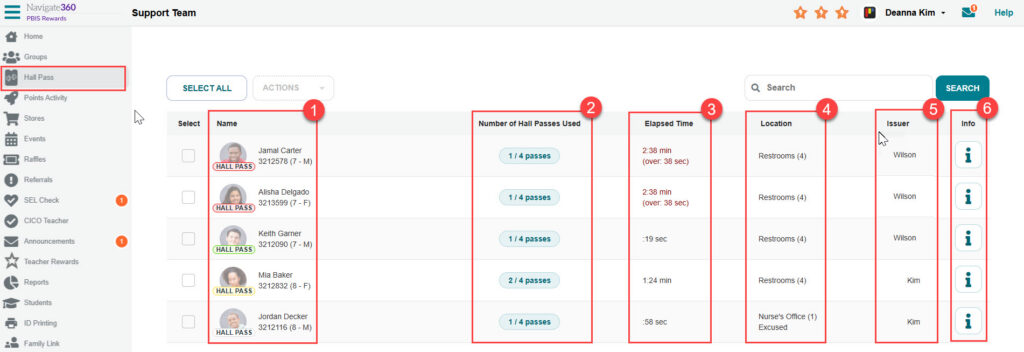
The Hall Pass tab will be displayed on the main menu for those staff who receive over time notifications.
Information included:
- Name shows the student’s information.
- Number of Hall Passes Used displays the number of hall passes used versus total passes available.
- Elapsed Time shows the amount of time the student has been on the pass and overage, if applicable.
- Location is the stated destination for the student.
- Issuer is the staff that created the hall pass.
- Info is a link to the Student Dashboard report. It will be clickable if the signed in user has permission to view the Student Dashboard for this student.
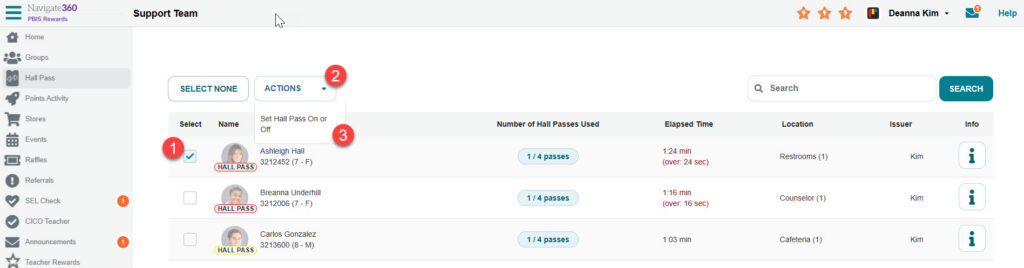
The Hall Monitor will be able to remove students from their hall passes from this list.
- Select the multi-select boxes on the left next to the students that need set back to present.
- Click the Actions box.
- Select “Set Hall Pass On or Off.” This will toggle the hall pass off setting the students back to present.
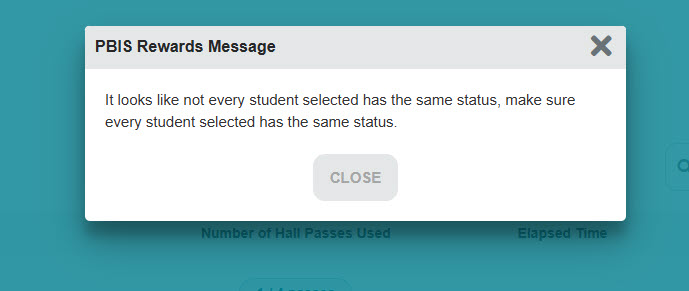
If any of the selected students have had their presence edited by another user simultaneous, this error below will appear. Close the error and then refresh the browser to have the most current hall pass information.